Footer
1. Overview
The theme footer is created using a Sub-Layout. This sub-layout is then inserted into the Main Layout, allowing you to reuse and manage the footer content easily. Please go to Joomla Admin > Site Template Styles > astroid_sbona - Default > Layout > Sub-layout.
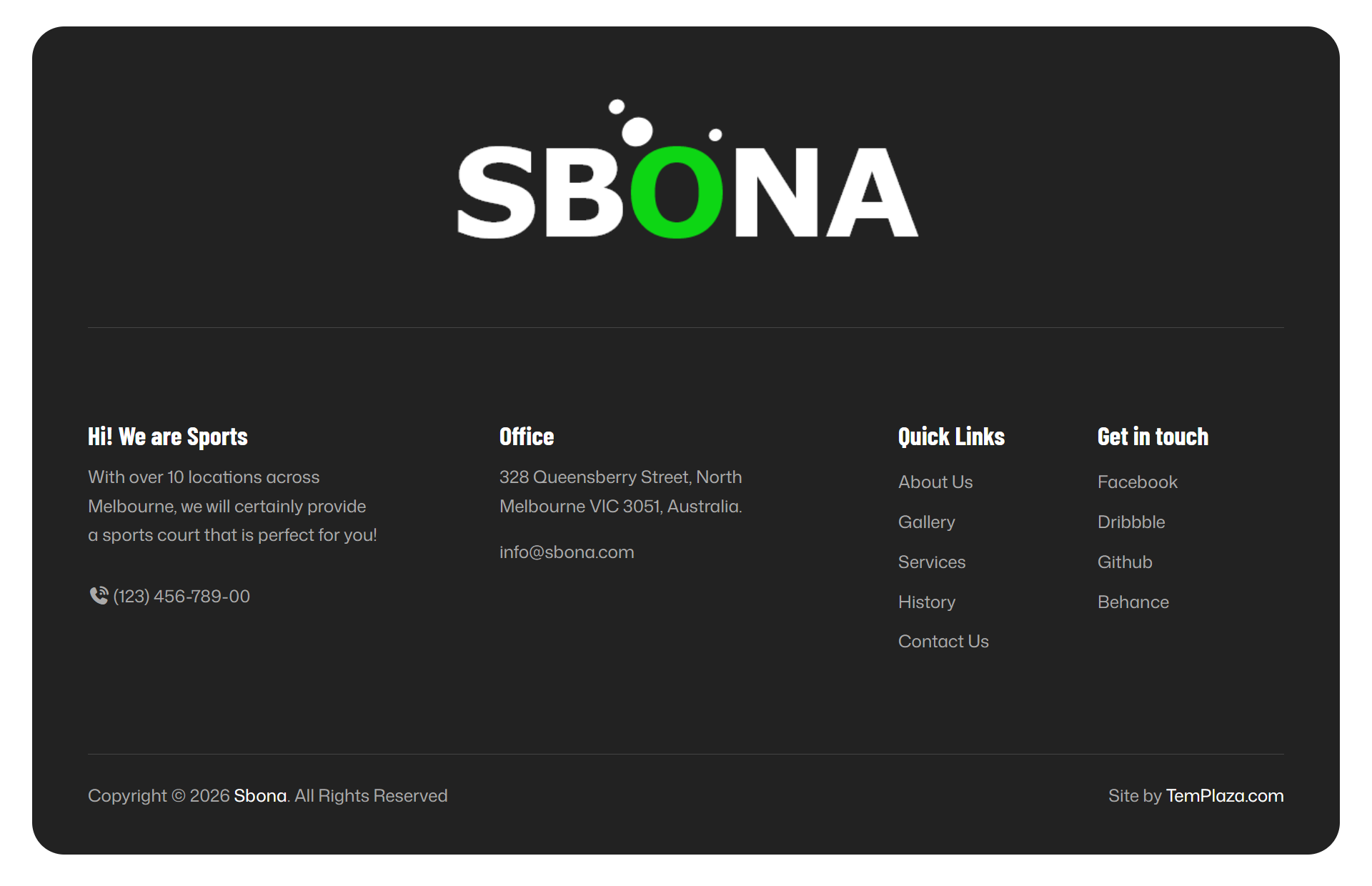
2. Understanding the Footer Structure
2.1 Sections
The footer is divided into sections
Each section can contain:
- One or more rows
- Multiple content blocks (text, image, links, etc.)
2.2 Rows and Columns
Inside each section:
- Content is arranged in columns
- Column width is controlled by dropdowns like
col-lg-2,col-lg-4,col-lg-6
Example:
col-lg-2= small columncol-lg-4= medium columncol-lg-6= half width
👉 Column sizes affect desktop view. Tablet and mobile views auto-adjust.
3. Footer Content Blocks
Each box inside a column is a content block.
Common footer blocks include:
- About Us – Text description
- Links – Menu or quick links
- Support – Help or contact info
- Follow Us – Social media links
- Image – Logo or footer image
- Phone Number – Contact phone
- Text – Custom text content
4. Editing Footer Content
- Click on a content block (e.g. About Us)
- Update the text, image, or links
- Click Save when finished
Changes apply instantly after saving.
5. Adding New Content
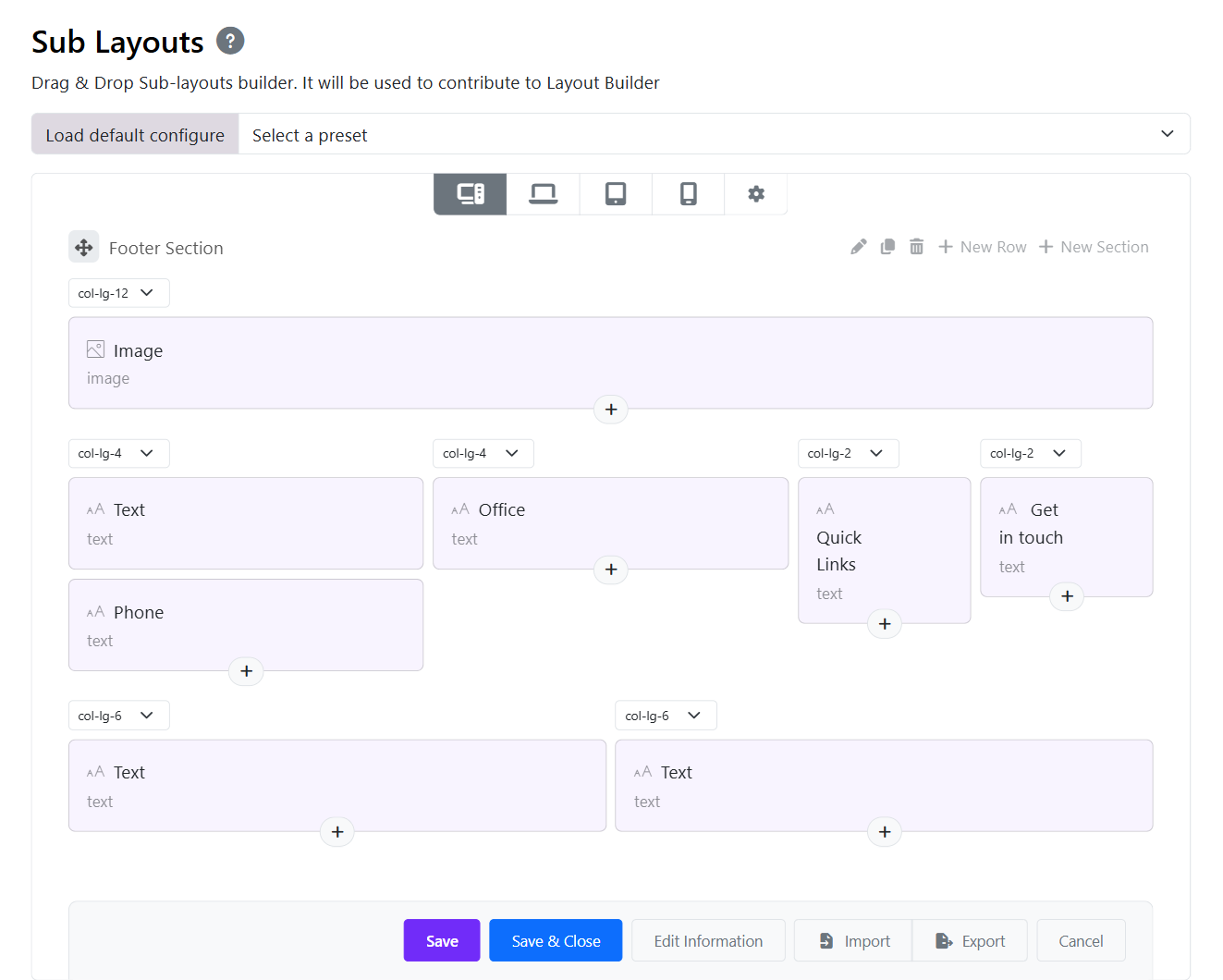
Add a new content block
- Click the ➕ (Plus) icon inside a column
- Choose the content type (Text, Image, Links, etc.)
Add a new row
- Click + New Row
Add a new section
- Click + New Section
6. Device Preview
At the top of the editor, you can switch between:
- 🖥 Desktop
- 💻 Laptop
- 📱 Tablet
- 📱 Mobile
Use these to ensure the footer looks good on all devices.
7. Footer background
- Go to Layouts > Sub-layout in your theme settings. Select the sub-layout used for the footer.
- Find the section containing the whole footer > Click the pencil icon (highlighted in the screenshot). This opens the section settings panel.
- In the Design tab, you can see options to change the background image and background color.
8. How the Footer Appears on the Website
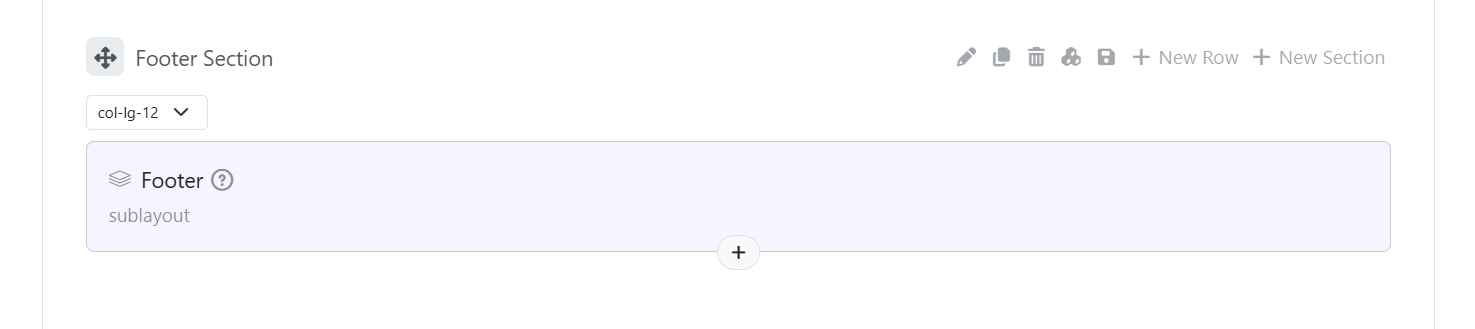
- The footer sub-layout is linked to the main layout. You just need to edit the Main Layout > add the sub-layout to the footer section > Save.
- Any changes you make in the sub-layout will be automatically updated in the website footer. No additional setup is required.